The simple guide
How to use Hearth.
Hearth takes about a minute to start using: open it in your browser, let it download once, and start typing — no account, no setup. If you can send a text message, you can use Hearth.
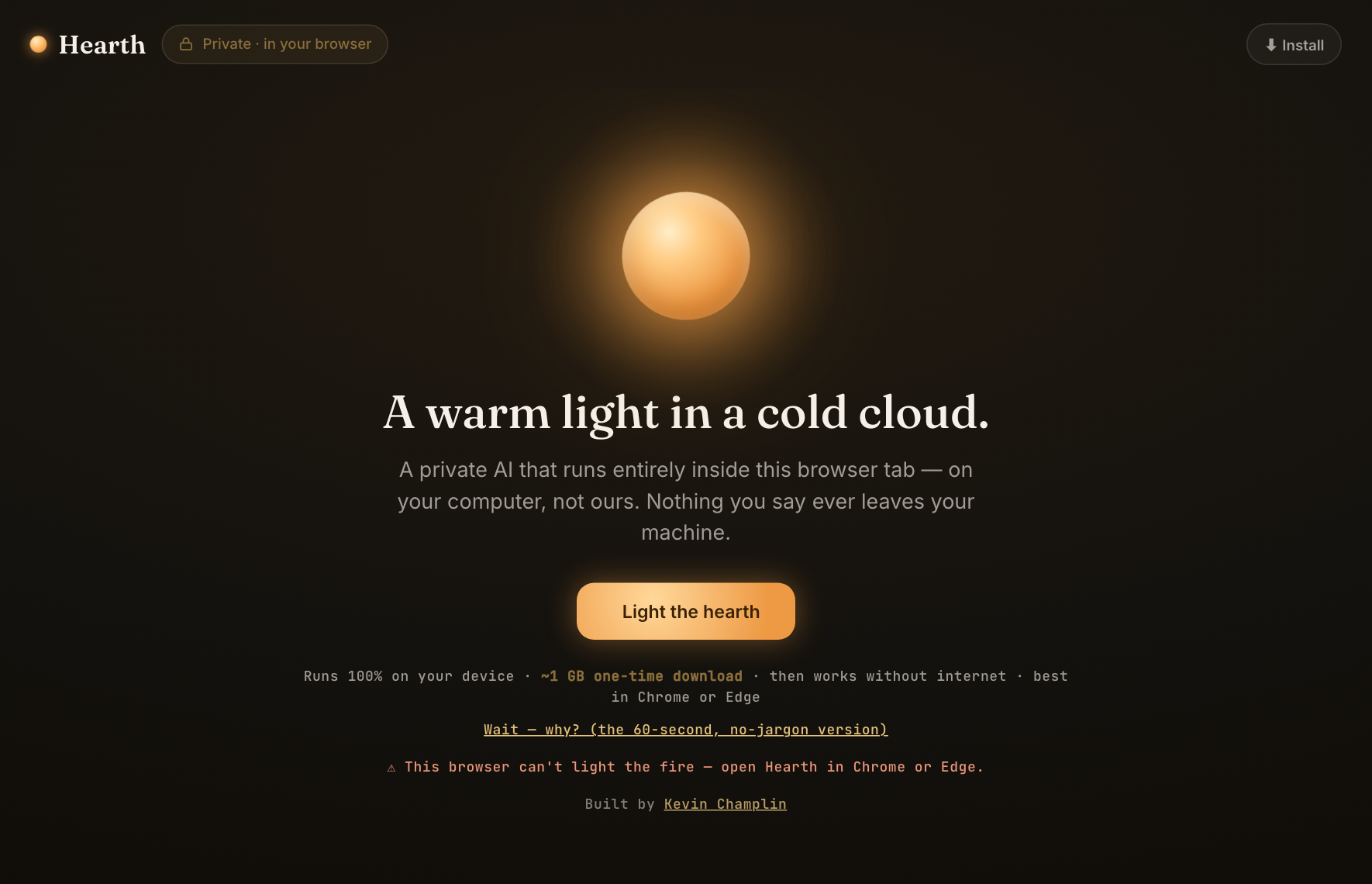
Open it in your browser
Go to hearth.kevinchamplin.com/app in Chrome or Edge and click the big “Light the hearth” button. That’s it — no account, no sign-up, no email.
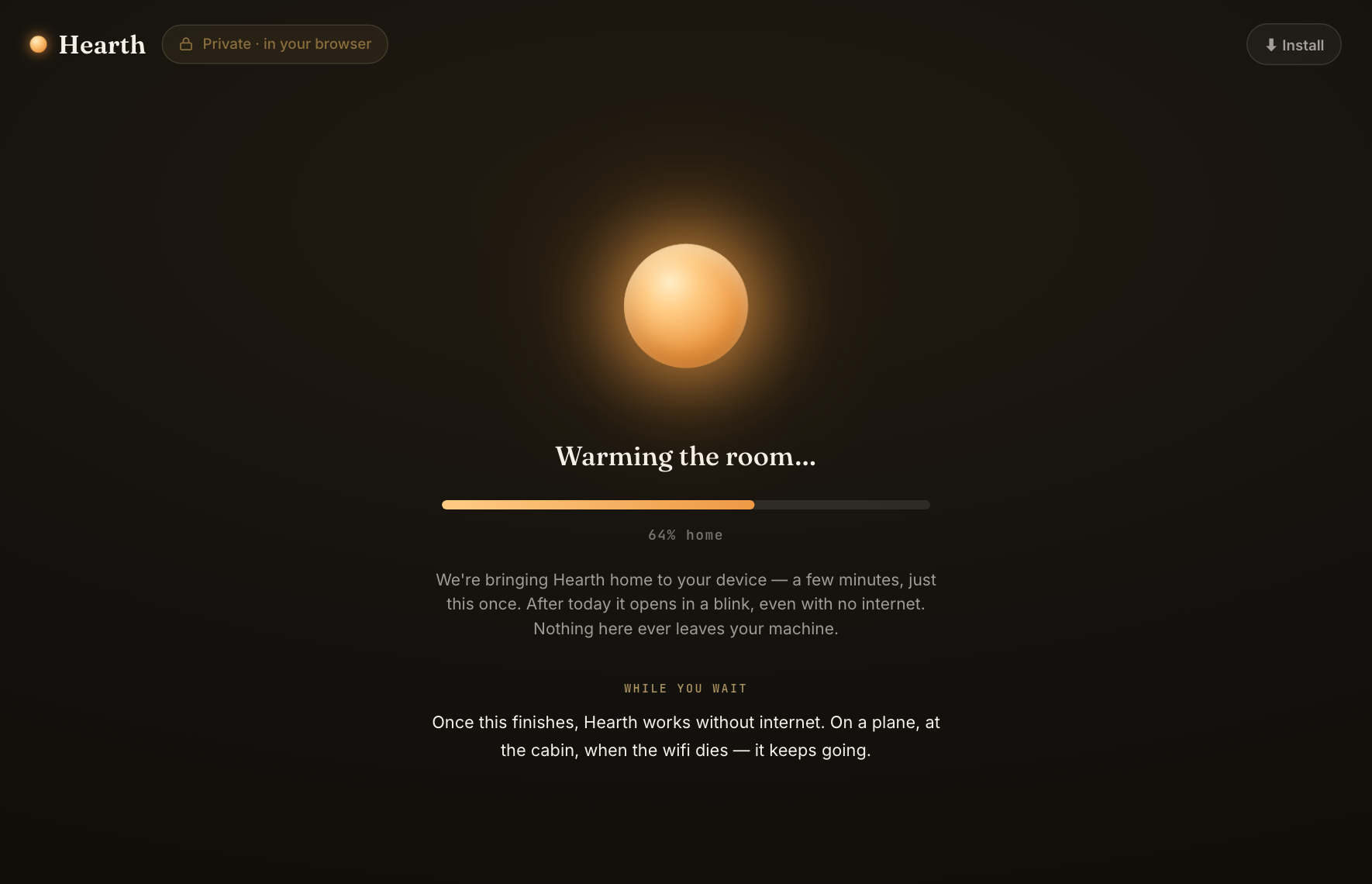
Let it download once
The first visit copies Hearth onto your own computer — a few minutes, just once. While you wait, it shows you little tips. After today, Hearth opens in a blink and keeps working even with no internet.
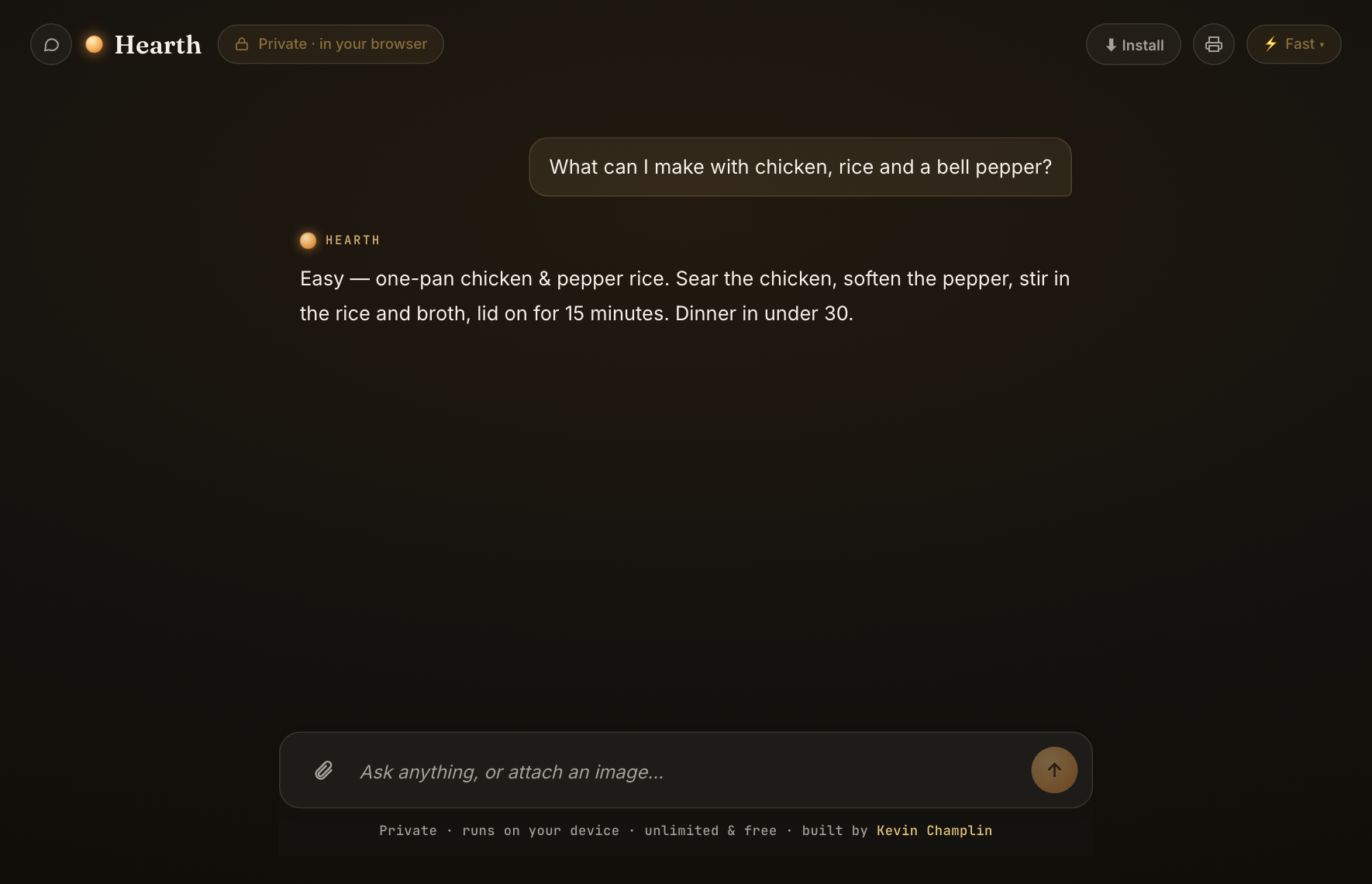
Start typing
Type in the box at the bottom and press Enter to send. Ask anything — a recipe from what’s in the fridge, help wording a tricky email, “explain this like I’m 10.” Hover over any answer to copy it, or use the printer button (top right) to print the whole conversation.
📎 Show it a photo: tap the paperclip next to the box, pick a picture, and ask about it. The photo never leaves your computer.
Choose how clever it is
Tap the brain button in the top-right corner (it says ⚡ Fast). Hearth has three brains — Fast, Smart, and Genius. A cleverer brain gives better answers, but takes a bigger one-time download and needs a stronger computer. Hearth checks your computer and tells you which ones fit, in plain words.

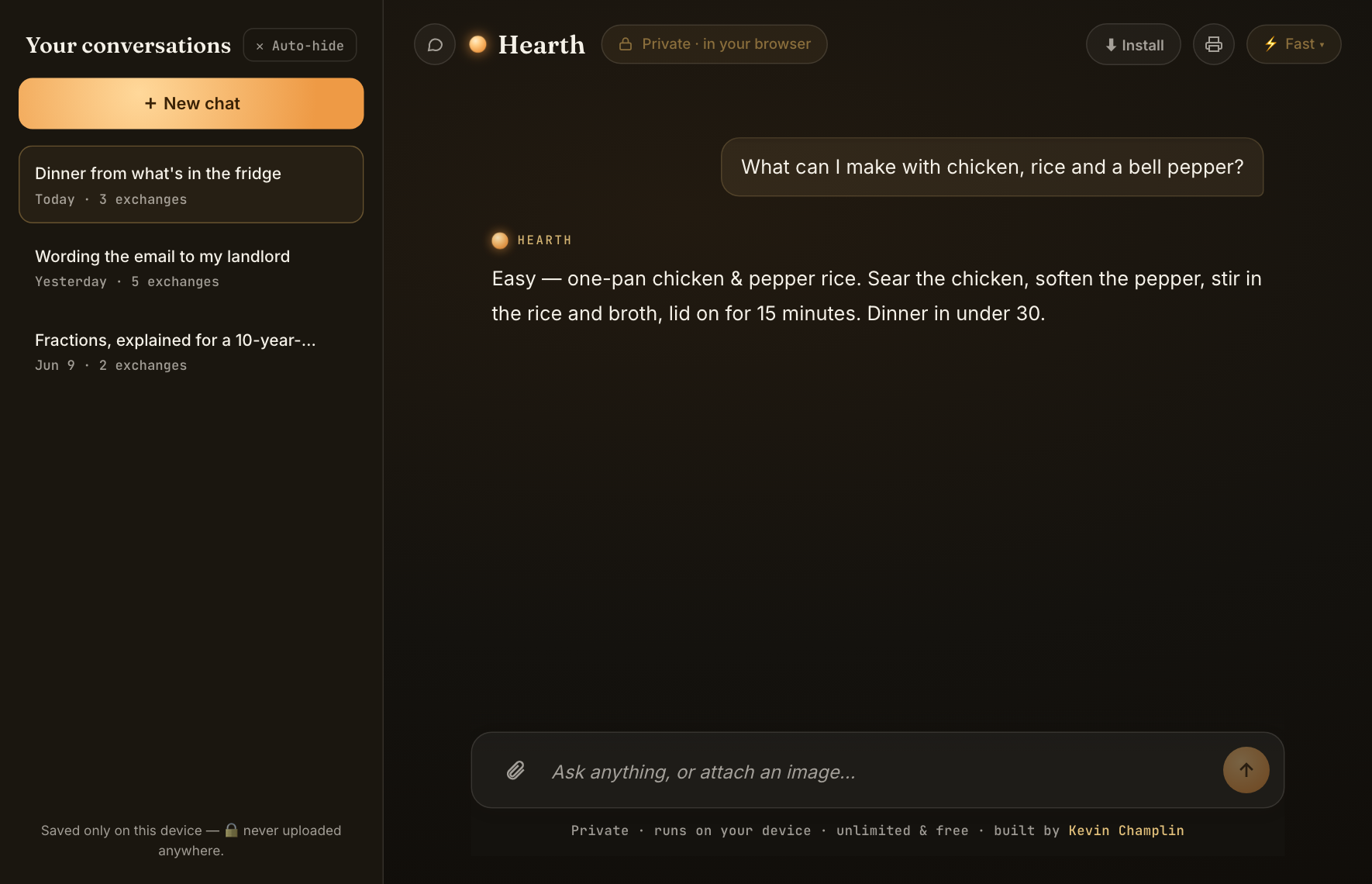
Find your past conversations
Tap the 💬 chat-bubble button in the top-left corner. Every conversation saves by itself — on your device only, never uploaded — so you can pick any of them back up right where you left off. Like having it handy? Tap 📌 Pin open to keep the list on screen, just like other chat apps.
Keep it forever (optional)
Want Hearth in your Dock like a real app? Click the ⬇ Install button at the top of Hearth — or follow the step-by-step install guide for your exact browser. It opens in its own window and works fully offline.
✈️ The party trick: once Hearth is set up, turn your wifi off mid-conversation. It keeps right on going — because it’s running on your computer, not in the cloud.
Curious how it stacks up? See Hearth next to other AI apps, read the FAQ for honest answers, or send a note — it goes straight to the builder.